<ai> By TJ Pitre
Figma Console MCP: AI-Powered Design System Management That Changes Everything
Discover how Figma Console MCP complements the official Figma MCP by providing complete project-wide context instead of component-specific information. Extract your full design system, manage variables and tokens, and even modify your Figma files directly through AI conversation.

There’s a lot of excitement around Figma’s official MCP server, and rightfully so. It’s a capable tool for generating code from your designs. But as we worked with it, we found ourselves wanting more—more context about the entire project, more insight into the full design system, and eventually, the ability to make changes directly in Figma. That’s why we built Figma Console MCP.
A Complement to the Official Figma MCP
The official Figma MCP does a solid job of translating designs into code. It comes with some opinions out of the box, but it’s flexible—tell it to generate Vue or vanilla HTML/CSS, and it will. Where it shines is quick component-level code generation from specific design links.
Figma Console MCP takes a different approach. Instead of focusing on individual component code generation, it gives you complete access to your entire Figma project—the full design specification in raw JSON format. This means the AI assistant helping with your development has visibility into:
- Every design token and variable across your system
- Complete component structures and relationships
- The full context of how components work together
- Auto-layout configurations, spacing scales, and typography systems
When you need more firepower—when you need the AI to understand not just a single component but how it fits into your broader design system—that’s where Figma Console MCP becomes invaluable.
What Makes This Different
The official MCP returns information about the specific component you’re asking about from the link you provide. Figma Console MCP gives you access to the entire Figma project, which means richer context for development decisions:
- Project-wide awareness: See how components relate to each other and share patterns
- Complete token access: Pull every variable, color, and spacing value from your design system
- Higher fidelity output: More context means more accurate code generation for your specific setup
- Flexible implementation: Raw design data lets the AI generate code for any framework or approach
Two Ways to Connect
Figma Console MCP offers flexibility in how you integrate it into your workflow:
Remote Mode (Zero Setup)
Perfect for getting started quickly. Connect via SSE with OAuth authentication—no local installation required. Remote mode provides:
- All 14 Figma tools available immediately
- Design system extraction (variables*, components, styles)
- Console debugging and screenshots
- Works with Claude Desktop, Claude Code, Cursor, and other MCP clients
*Variables API requires Figma Enterprise plan in Remote mode
Local Mode (Full Capabilities)
For teams needing the complete feature set, Local mode connects directly to Figma Desktop through the Desktop Bridge plugin. This unlocks additional capabilities beyond reading design data.
Beyond Reading: Full Design System Control
While the original intent was improving development context, we’ve since expanded Figma Console MCP to include write capabilities. With Local mode and the Desktop Bridge plugin, you can:
- Update design tokens and variables across your entire design system
- Add, edit, and manage component properties programmatically
- Search and navigate through thousands of components instantly
- Execute custom Figma Plugin API code through natural language
- Clone, rename, resize, and reorganize nodes
- Set fills, strokes, and visual properties on any element
- Access variables without an Enterprise plan
Variable and Token Management
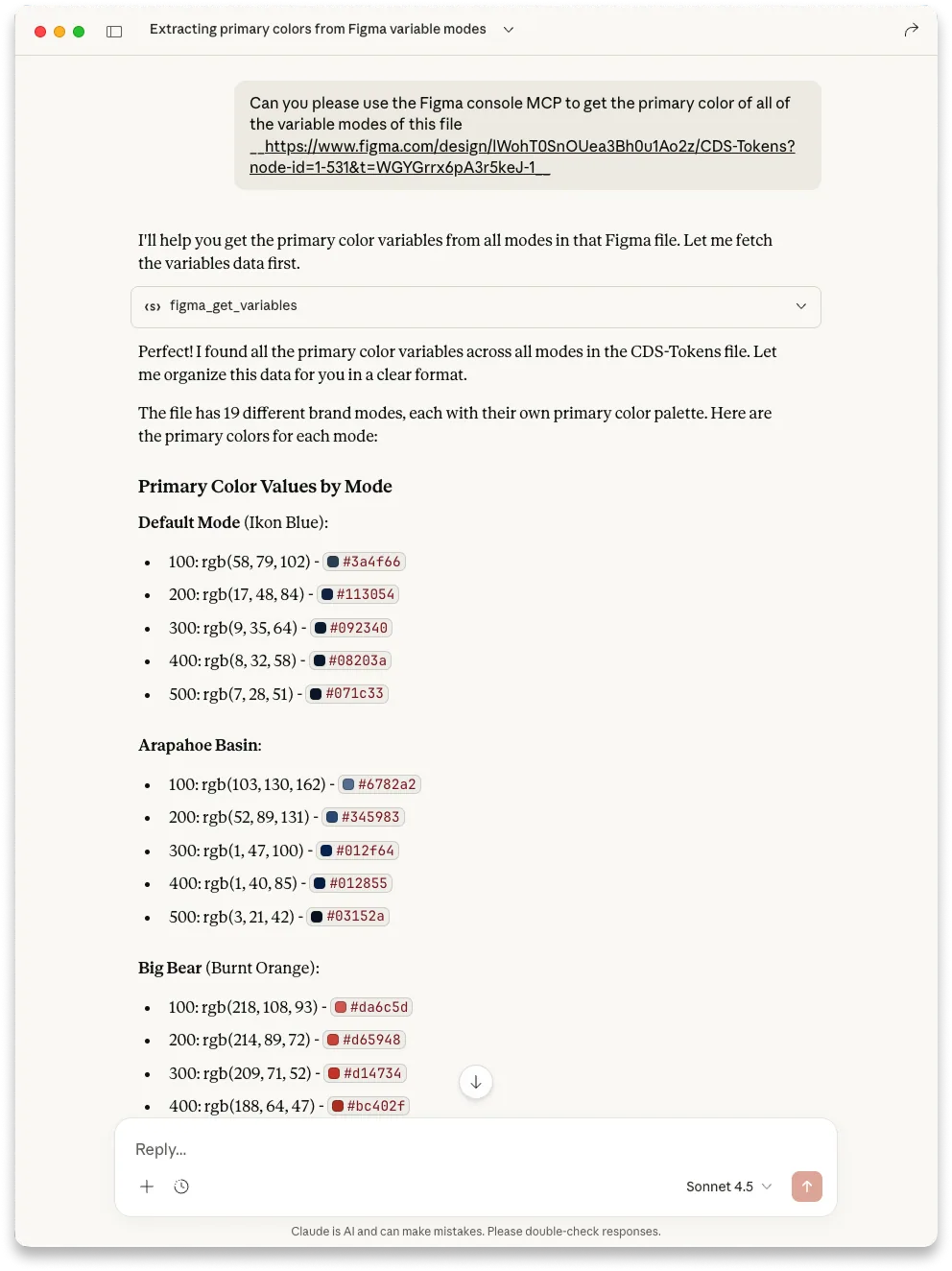
Need to update your brand’s primary color across the entire design system? Simply tell your AI assistant to update the variable, and the change propagates everywhere it’s used—no manual find-and-replace across multiple files.
Design System Documentation
Imagine having 1,000+ components in your library, many missing descriptions. With Figma Console MCP, you can audit your entire component library and add professional documentation to every component through natural conversation. What would take weeks manually takes minutes with AI assistance.
Component Property Management
Adding consistent properties across component variants becomes trivial. Want to add a “Show Icon” boolean and “Label Text” property to your button system? Just ask, and it’s done.
Use Both Together
The official Figma MCP and Figma Console MCP aren’t competing—they’re complementary:
- Official Figma MCP: Quick code generation from specific component links
- Figma Console MCP: Deep project context, design system management, and Figma modifications
Use the official MCP when you want quick scaffolding from a component. Use Figma Console MCP when you need the AI to understand your full design system or when you need to make changes to Figma itself.
A Note on Setup
I won’t sugarcoat it—getting the full Local mode set up requires more steps than your typical MCP server. You’ll need to configure the MCP server, load the Desktop Bridge plugin, and ensure everything is connected. Remote mode is much simpler (literally paste a URL), though it has the Enterprise limitation for variables.
But here’s what I’ve discovered after working with it extensively: none of that matters once you’re in it and working with it. The initial setup investment pays off exponentially when you’re managing a design system at scale, or when you need that extra context for your development workflow.
Watch the Complete Video Series
I’ve documented the entire journey of building and using Figma Console MCP in a five-part video series. Each video dives deep into different aspects of the tool and demonstrates real-world usage.
Part 1: Introduction and Overview
An introduction to what Figma Console MCP is and how it differs from other Figma + AI integrations.
Read the LinkedIn discussion →
Part 2: Console Logging and Debugging
Deep dive into the debugging capabilities and how to use console logs for troubleshooting your Figma plugins.
Read the LinkedIn discussion →
Part 3: Design System Analysis
Learn how to analyze and audit your design system using AI-powered tools.
Read the LinkedIn discussion →
Part 4: Full Read/Write Capabilities
The game-changer: see how to actually modify your Figma files through AI commands.
Read the LinkedIn discussion →
Part 5: For Everyone
How Figma Console MCP benefits the entire team—not just developers.
Read the LinkedIn discussion →
Bonus: Full Figma Automation
How to use your design system as an API.
Read the LinkedIn discussion →
Get Started
Figma Console MCP is open source and available on GitHub. The repository includes comprehensive documentation, setup instructions for both Remote and Local modes, and examples to help you get started.
The Future of Design System Management
AI-powered design tools are evolving rapidly, and Figma Console MCP represents a step forward in how we interact with our design systems. By providing complete project context to AI assistants—and now the ability to make changes directly in Figma—we’re opening up possibilities that were previously only available to those who could write complex plugin code.
Whether you’re a solo designer managing a small component library or part of a team maintaining an enterprise design system with thousands of components, Figma Console MCP provides the tools to work more efficiently and effectively.
The setup might take a few extra steps for Local mode, but once you experience the power of managing your design system through conversation, you’ll wonder how you ever worked without it.