<ai> By TJ Pitre
Figma MCP vs. Figma Console MCP: A Definitive Comparison
They share three letters in common. That’s about where the similarities end. A clear, category-by-category breakdown of what Figma’s official MCP server and Figma Console MCP can each do — and when to use which.

If you’ve seen a LinkedIn post where someone generates a full UI component inside Figma using natural language — and the caption says “Figma MCP” — there’s a good chance they’re actually using Figma Console MCP.
The naming confusion is real, and it’s creating wrong assumptions about what each tool can do. This article sets the record straight with a category-by-category breakdown.
The Short Version
Figma MCP (by Figma, Inc.) is a design-to-code bridge. It reads your Figma designs and translates them into code. Think of it as a one-way window: code looks at design. 13 tools. REST API. Closed source.
Figma Console MCP (by Southleft) is a full design system API. It reads, writes, creates, debugs, and manages your entire Figma file programmatically. Think of it as a two-way door: code and design flow both directions. 57+ tools. Plugin API + REST API. Open source (MIT).
How They Connect to Figma
The biggest architectural difference is how each server talks to Figma — and this determines everything they can and can’t do.
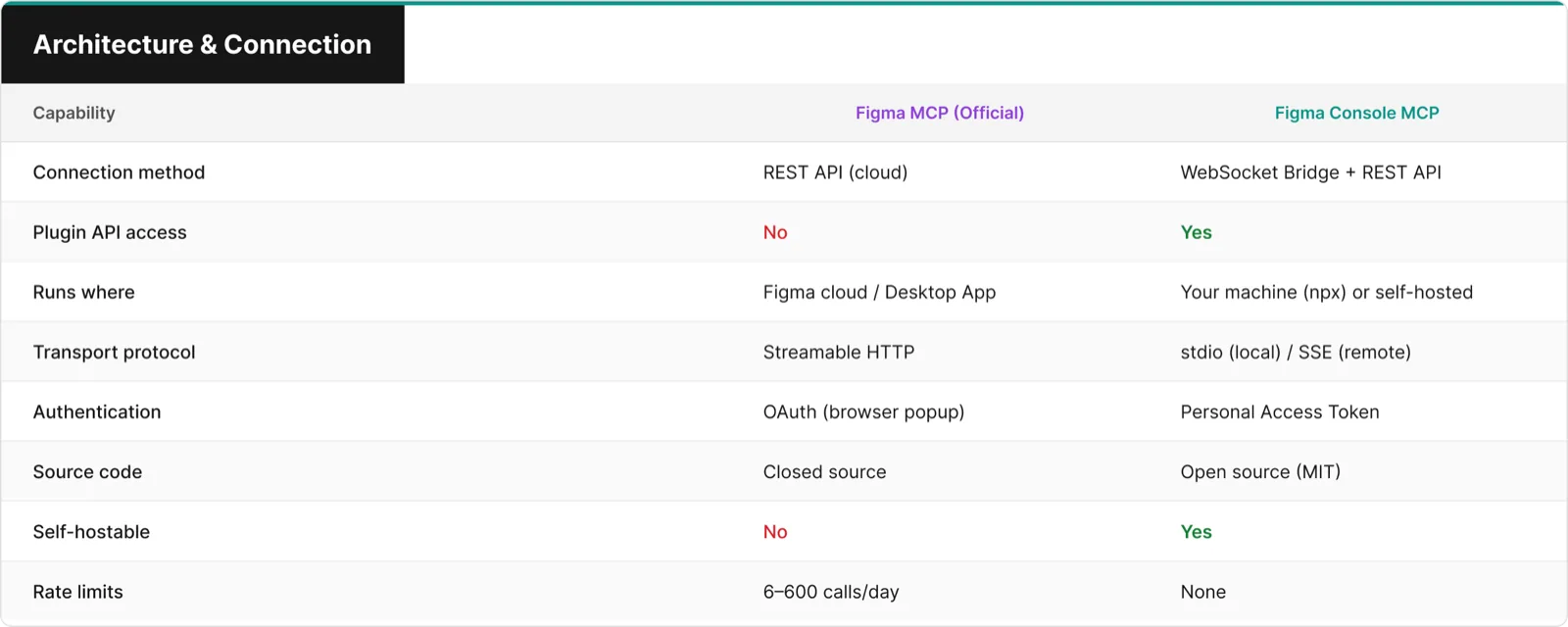
The Figma REST API is read-only for design data. You can fetch file structures, component metadata, and export images — but you cannot create a rectangle, change a fill color, or add a variable. The Plugin API can do all of that and more.
Figma Console MCP’s Desktop Bridge plugin runs inside Figma, giving AI assistants the same power as any Figma plugin — create nodes, modify properties, manage variables, listen for events. The official Figma MCP does not have this capability.
Design Reading
Both servers can read your Figma designs, but with different depth and mechanisms.
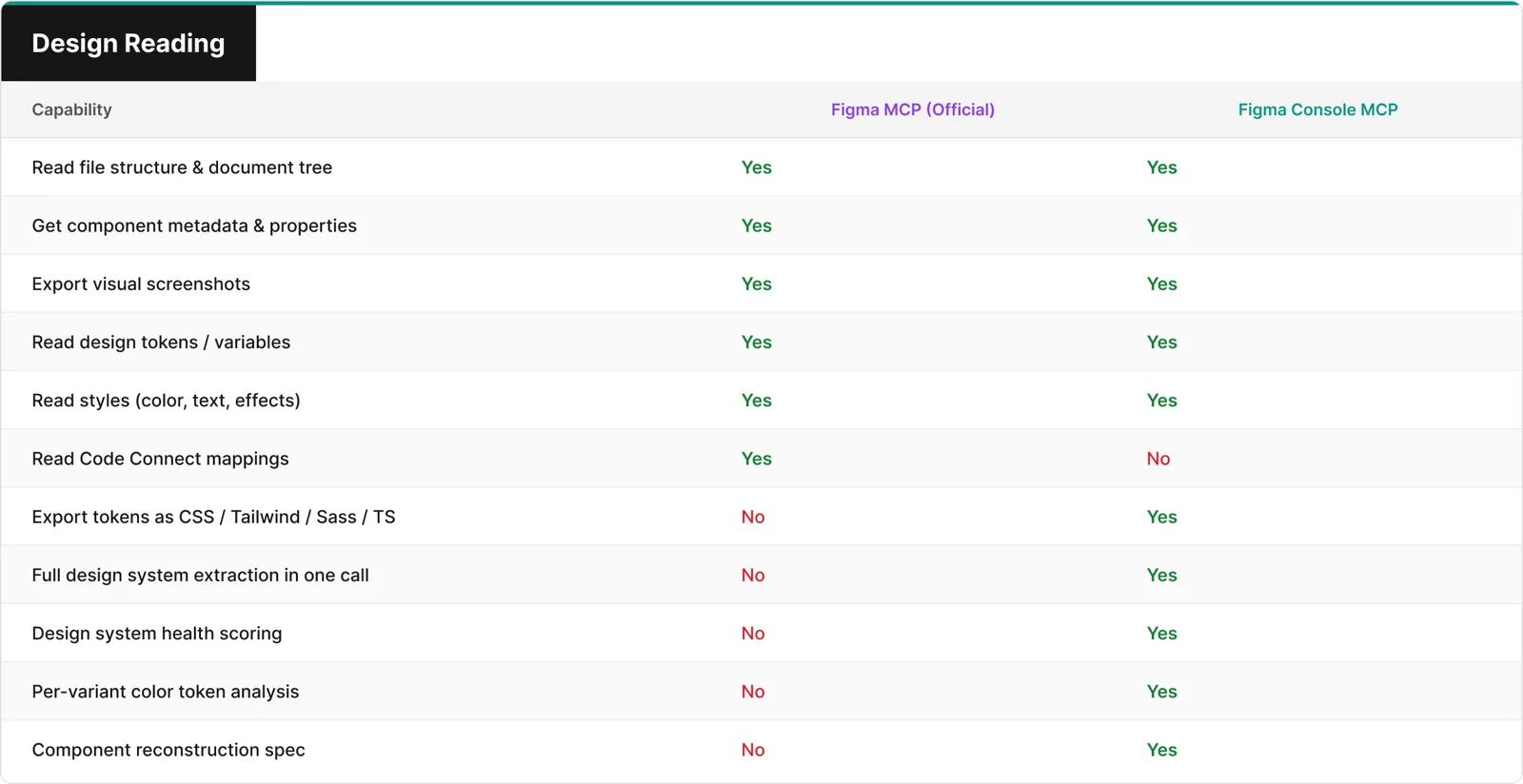
Where Figma MCP reads your designs through the REST API, Figma Console MCP goes deeper — full design system extraction in a single call, health scoring, per-variant token analysis, and component reconstruction specs that give AI everything it needs to rebuild a component from scratch.
Design Writing & Creation
This is where the two tools diverge most dramatically.
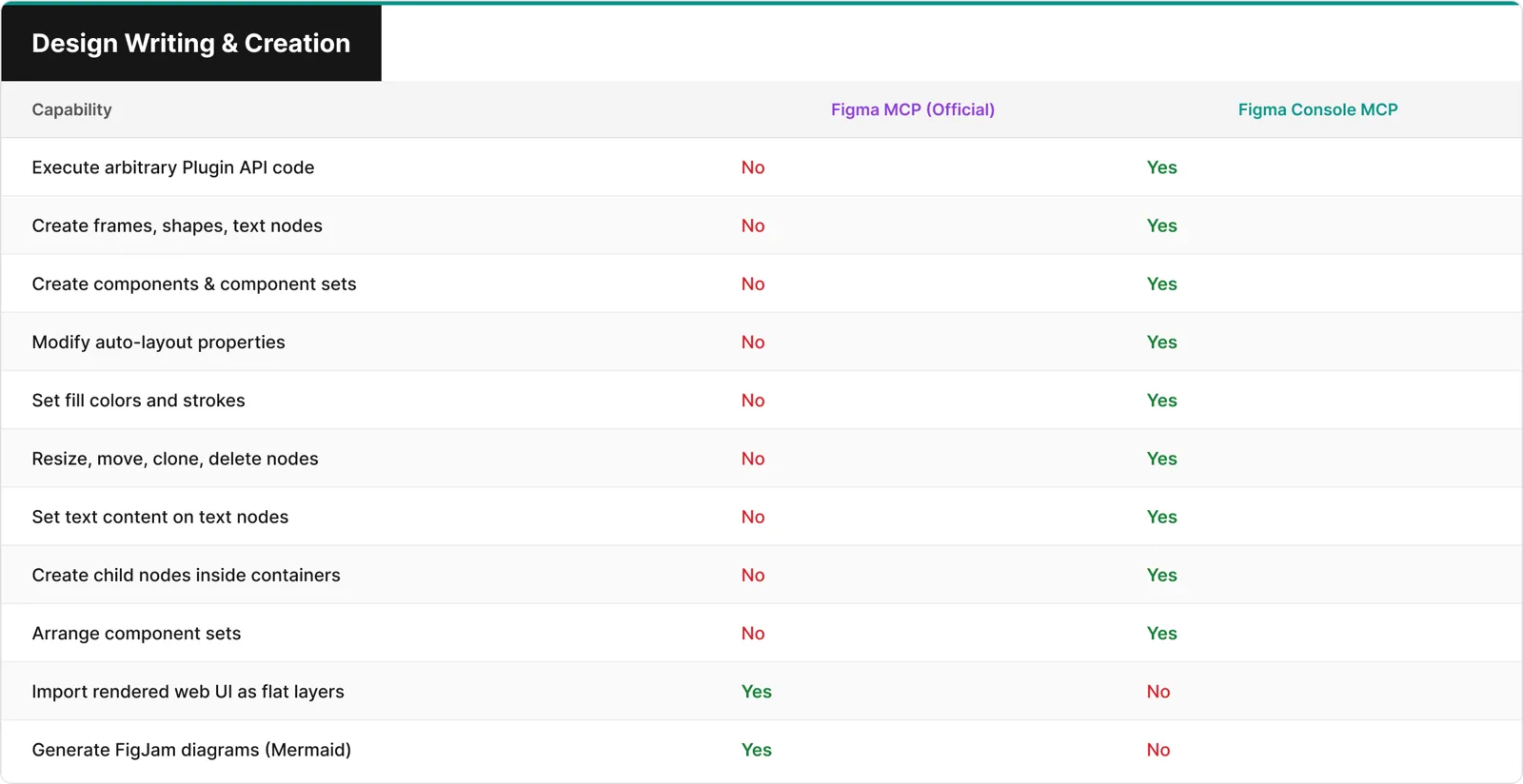
Figma MCP’s generate_figma_design tool captures a rendered web page and imports it as flat design layers — it doesn’t programmatically create design elements. Figma Console MCP’s figma_execute runs actual Plugin API JavaScript, meaning anything a Figma plugin can do, the AI can do.
Variable & Token Management
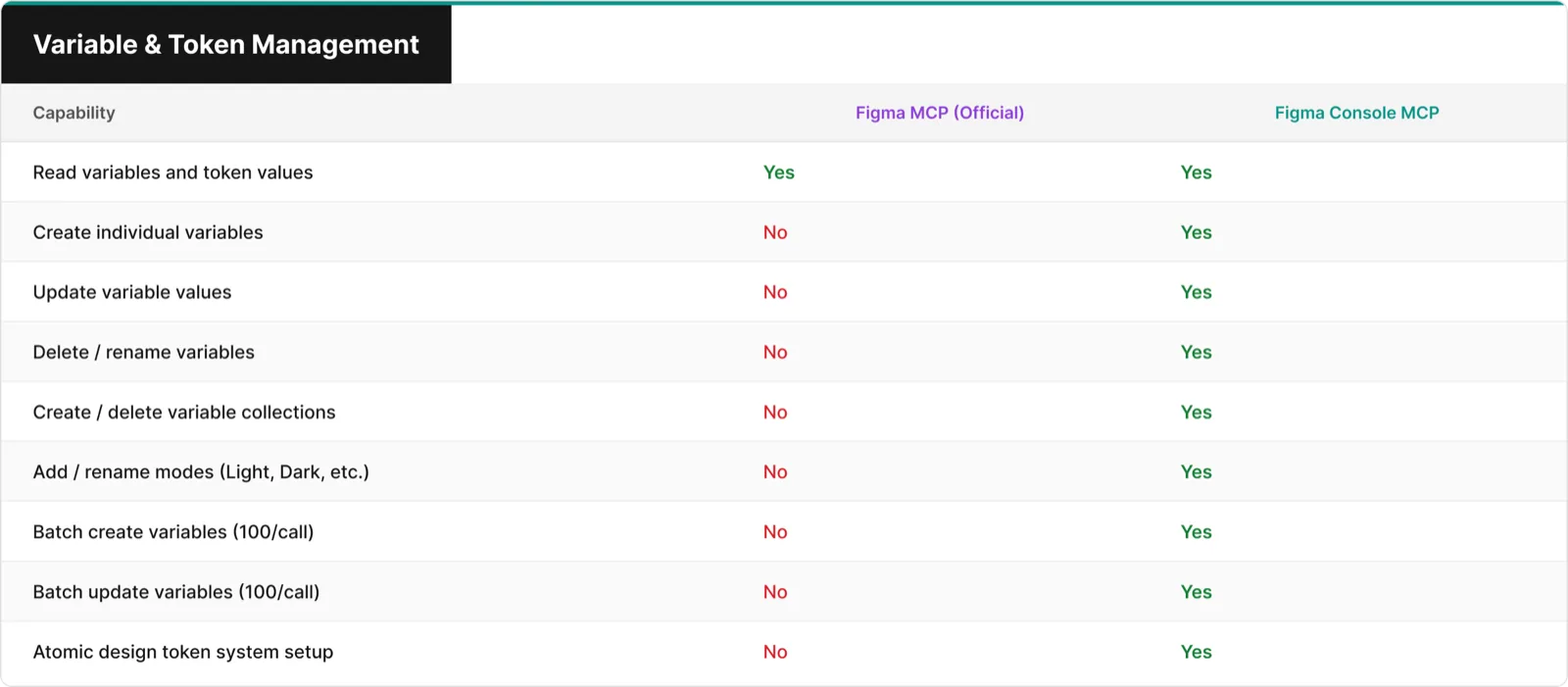
Figma Console MCP has 11 dedicated tools for variable and token management. Batch operations handle up to 100 variables per call (10-50x faster than individual calls). The figma_setup_design_tokens tool creates an entire token system — collection, modes, and variables — in a single atomic operation.
Component Management
Real-Time & Developer Features
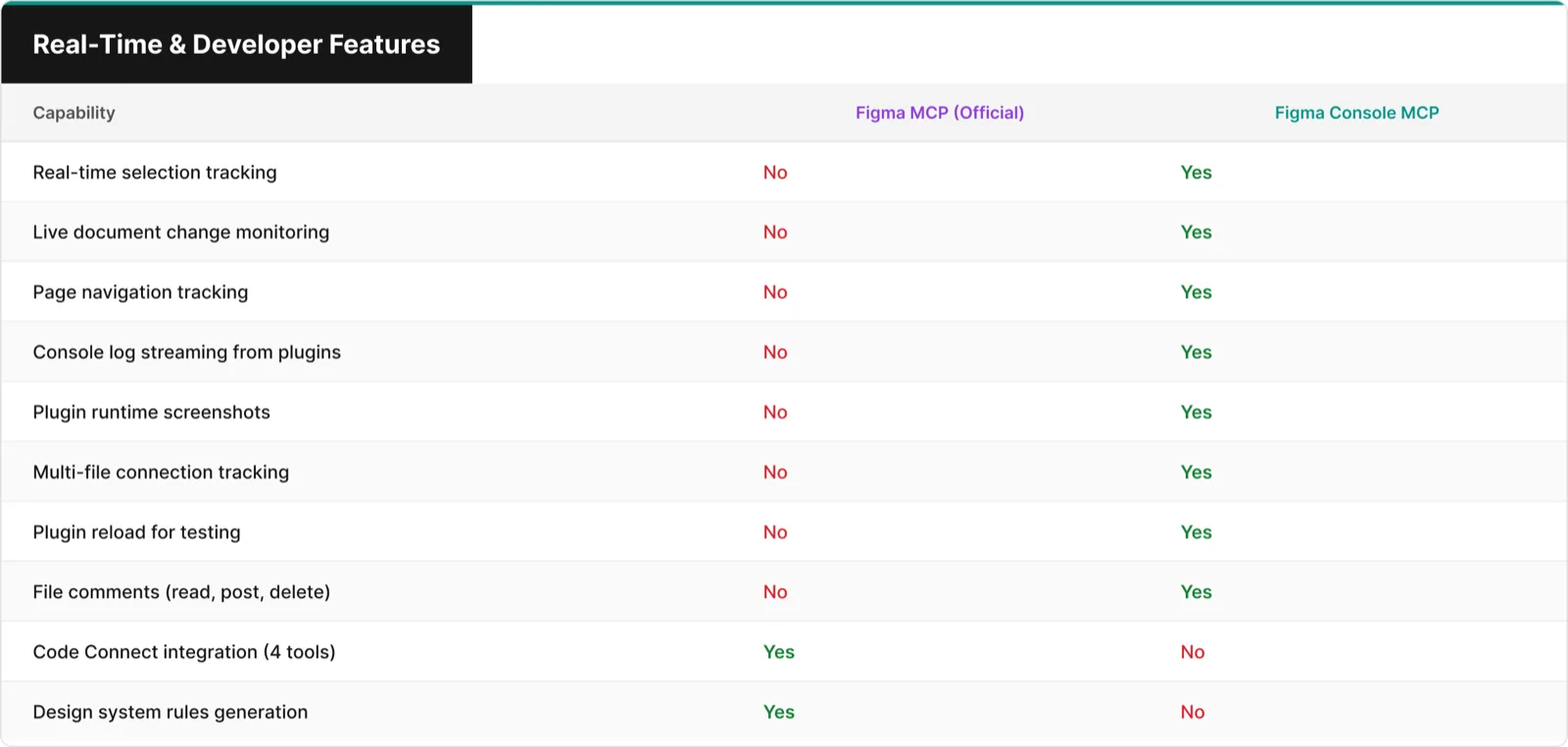
Real-time awareness is unique to Figma Console MCP. It knows what you’ve selected, what changed in the document, and what page you’re on — all in real time through the WebSocket Desktop Bridge. This makes it invaluable for plugin development and debugging workflows.
Design-to-Code Workflow
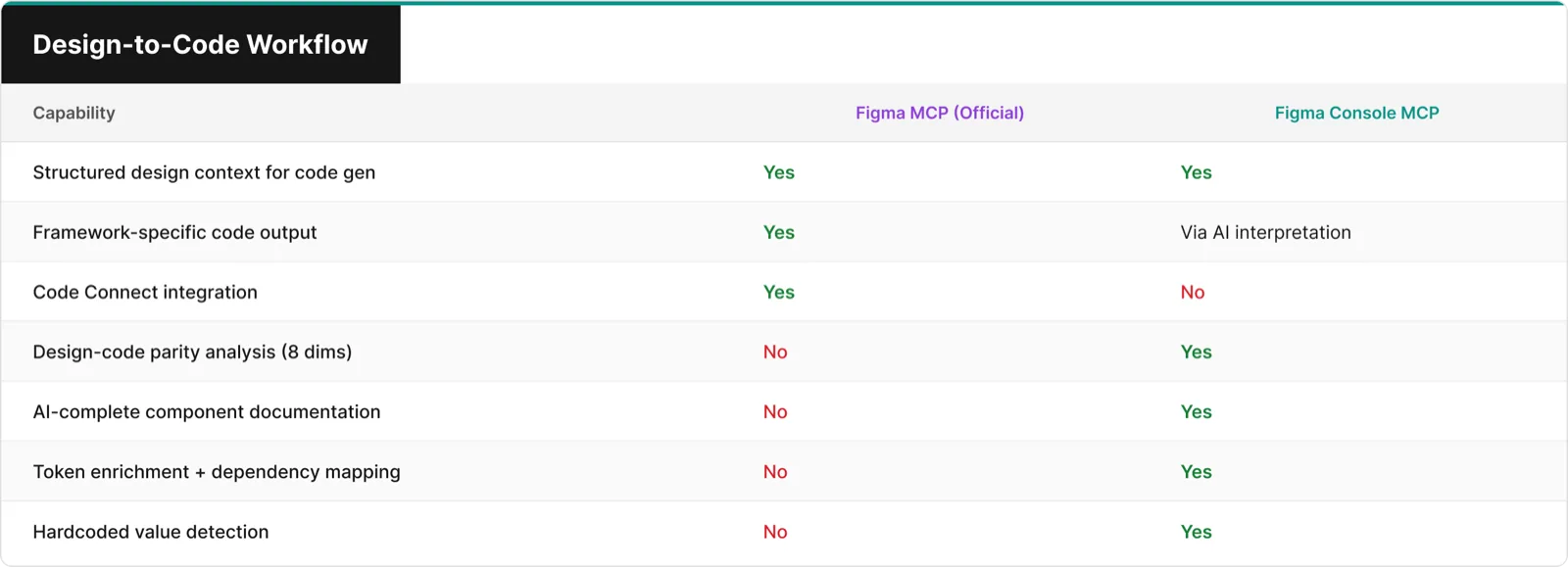
Figma MCP excels at generating framework-specific code output and Code Connect integration. Figma Console MCP provides deeper design intelligence — parity analysis across 8 dimensions, AI-complete component documentation, and hardcoded value detection that catches design system violations.
The Numbers
| Metric | Figma MCP (Official) | Figma Console MCP |
|---|---|---|
| Total tools | 13 | 57+ |
| Read-only tools | ~10 | ~22 |
| Write/create tools | 3 | 35+ |
| Variable management tools | 0 | 11 |
| Component management tools | 0 | 5 |
| Real-time awareness tools | 0 | 2 |
| Rate limits | Yes (plan-dependent) | No |
| Open source | No | Yes (MIT) |
When to Use Which
Use Figma MCP when you want design-to-code translation with framework-specific output, Code Connect integration for mapping Figma components to existing code components, zero-setup access via the hosted server, or FigJam diagram support.
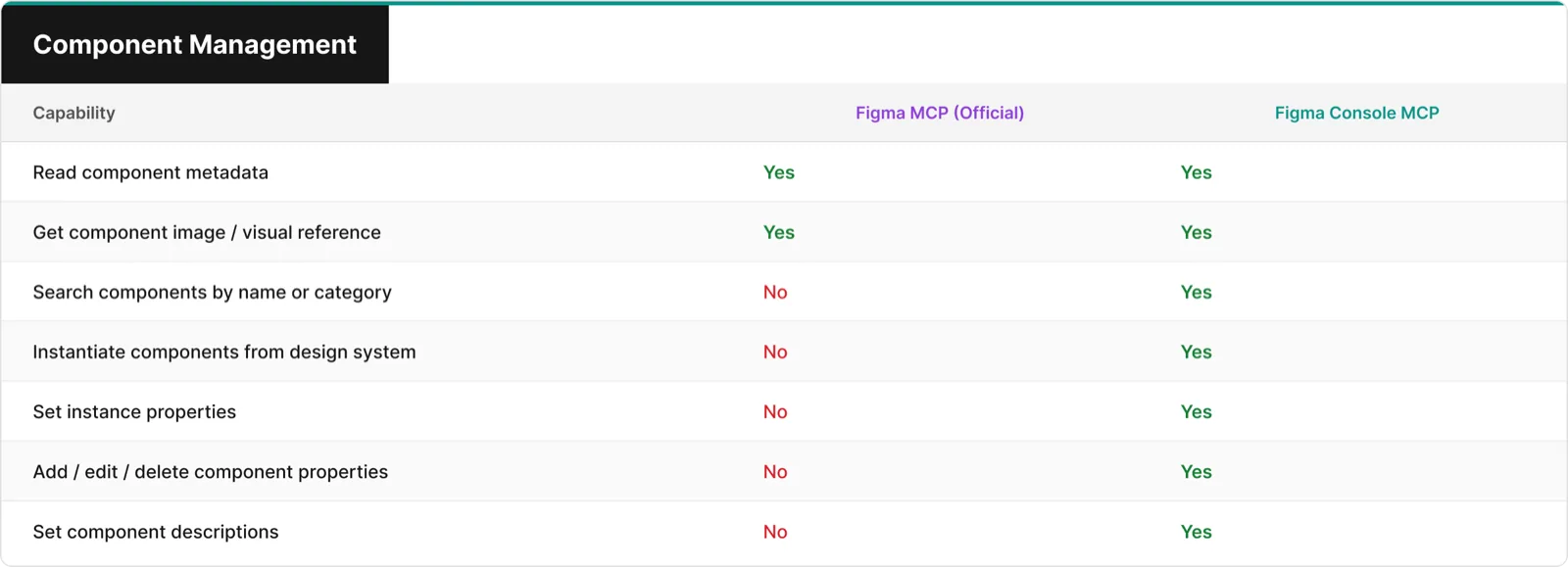
Use Figma Console MCP when you want AI to create designs in Figma, manage design tokens at scale, get real-time awareness of user actions, debug Figma plugins, analyze design-code parity, or need unlimited usage with no rate limits.
Use both together for the best workflow. They’re complementary, not competitive. Use Figma Console MCP in the design phase to create and manage tokens, then use Figma MCP in the handoff phase to generate framework-specific code with Code Connect ensuring the right components are used.
A Note on Credit
We see the LinkedIn posts. We see the YouTube videos. Someone uses Figma Console MCP to generate a full login screen inside Figma, complete with auto-layout and design tokens — and the caption says “Look what Figma MCP can do!”
We get it. The names are confusingly similar. And honestly? Figma MCP walked so Figma Console MCP could run.
Figma’s decision to build an official MCP server validated the entire concept of AI-powered design tooling. It proved that the design industry was ready for this. It opened the door for tools like ours to exist in a space that developers and designers already understood.
We’re not here to compete with Figma. We’re here to extend what’s possible. The official MCP gives you a window into your designs. Figma Console MCP gives you the keys to the building.
Get Started
Read the full comparison with interactive tabs on our documentation site, or jump straight to the setup guide to connect your AI assistant to Figma in under 10 minutes.
Figma Console MCP is open-source (MIT) and built by Southleft. It is not affiliated with Figma, Inc.
Meta: This article — including the text, comparison tables, and all images — was produced using Figma Console MCP and AI. The comparison tables were designed programmatically in Figma via the figma_execute tool, exported as images, and published to WordPress via the Southleft MCP. No manual design work was involved.